- Use cases
- Manual paraphrasing
- Sentence splitting
Manual paraphrasing use cases: where ParaWrite helps
Academic drafts, cover letters, reports and dialogue: real examples of how ParaWrite splits text into sentences so you can rewrite each one yourself.
· 3 min read
ParaWrite does one thing: it splits your text into sentences and lets you rewrite them one at a time, with the context beside you. It never writes for you. That makes it a good fit for some jobs and a poor fit for others, so here is where it helps most, with real examples from the sentence splitter it uses.
If you want a tool that rewrites text automatically, ParaWrite is not that tool. If you want to stay in control of every word, read on. (I wrote about why I built it in the first post.)
1. Academic writing
Rewriting your own drafts, turning reading notes into your own words, or tightening a literature review are all sentence-level jobs. The hard part is keeping meaning exact while changing the wording, and seeing how each sentence connects to the next.
Academic text is also full of periods that don't end sentences. Here is what ParaWrite does with a typical line:
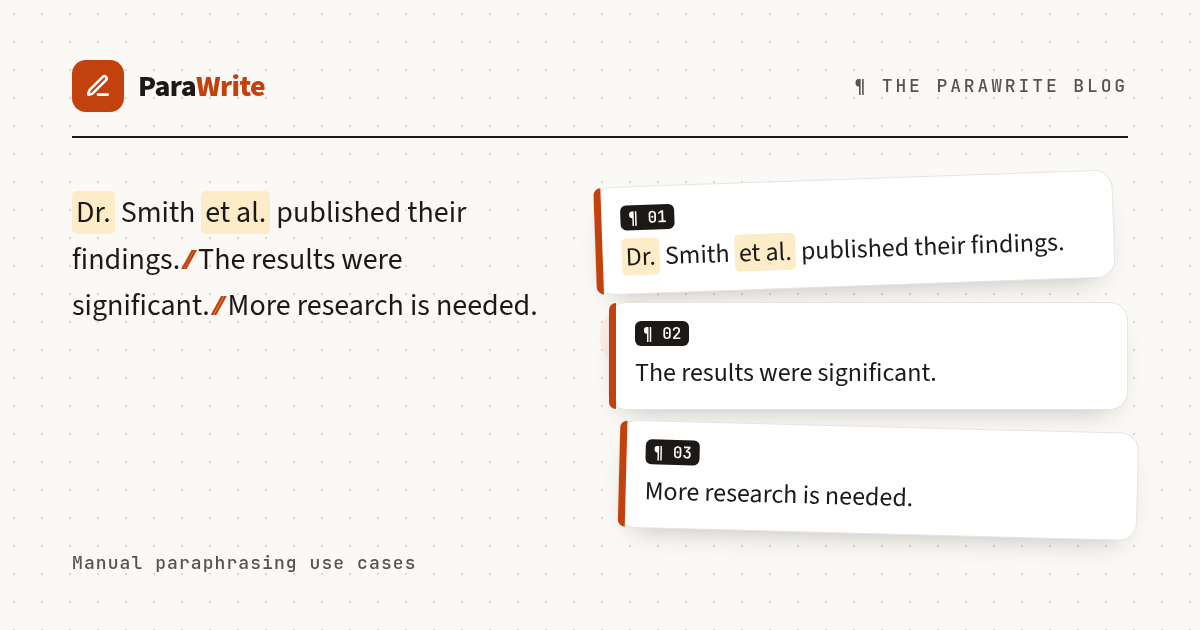
Dr. Smith et al. published their findings. The results showed statistical significance (p < 0.05). Further research is needed.
It becomes three sentences, with "Dr.", "et al." and "0.05" kept intact:
- Dr. Smith et al. published their findings.
- The results showed statistical significance (p < 0.05).
- Further research is needed.
2. Reports with names, initials and places
Business and policy writing mixes initials, abbreviations and numbers. A naive splitter breaks "U.S.A." into pieces.
John A. Smith visited the U.S.A. He met with officials in Washington, D.C. The trip lasted 3.5 days.
ParaWrite keeps the initials, the country, the city and the decimal together:
- John A. Smith visited the U.S.A.
- He met with officials in Washington, D.C.
- The trip lasted 3.5 days.
See the international use case
3. Fiction, dialogue and quotes
When you revise dialogue, the quoted question belongs with the sentence that contains it.
She asked, 'Are you ready?' He responded immediately. The conversation ended there.
- She asked, 'Are you ready?'
- He responded immediately.
- The conversation ended there.
Ellipses and mixed punctuation are handled too, which matters for creative writing:
Wait... What happened next?! The story continued...
- Wait...
- What happened next?!
- The story continued...
See the publishing use case and the creative writing use case
4. Cover letters and personal statements
These are short, but the voice matters more than anywhere else. An automatic paraphraser makes them sound generic. Rewriting each sentence yourself, while reading the one before it, keeps the letter coherent and still yours.
5. Reworking a document you already have
If your text is in a file, upload it instead of pasting. ParaWrite accepts TXT, DOCX, DOC, PDF, MD and MDX files up to 15 MB. Before you start editing, you see the extracted text and can fix anything that came out wrong. There is a find-and-replace tool for that, or you can retry the extraction.
When you finish, the Changes view shows every edited sentence next to its original, so you can review the whole rewrite before you copy it or download a .txt file.
Where the splitter can still slip
No sentence splitter is perfect, and I'd rather say so. File names like "package.json", version strings like "v18.2.0", legal citations like "Smith v. Jones" and units like "98.6°F" are all handled. The hard cases left are the ambiguous ones. "Apple Inc. Chief Executive…" looks exactly like a sentence ending after "Inc." followed by a new sentence, so ParaWrite splits there. If a split looks wrong, fix the text in the box before you start, so each sentence screen holds a whole sentence.
A few tips
- Read the context first. The sentences before and after the current one tell you what it needs to connect to.
- Keep the meaning, change the wording. The original stays on screen, so check your version against it before moving on.
- Use the keyboard. Ctrl + Enter (Cmd + Enter on a Mac) moves to the next sentence.
- Review at the end. The Changes view is the fastest way to catch a sentence that drifted.
Ready to try it? Open the editor. It's free, open source, and there's no account to create.